Setting Up Email Domain and Creating Email Accounts
2606 ViewsSetting Up Email Domain and Creating Email Accounts
Setting up your email domain and creating email accounts with Asherr's hosting services is easy. Follow the steps below to get started.
Step 1: Configure DNS Records
- Create A Records:
- "mail" A Record: Point this record to your server's IP address. If you're using Cloudflare, ensure this record is not proxied.
- "webmail" A Record: Point this record to your server's IP address.
- Create MX Record:
- Point the MX record to
mail.domain.com(replacedomain.comwith your actual domain name).
- Point the MX record to
Step 2: Add Mail Domain in Control Panel
-
Navigate to Mail Tab: Log in to your web hosting control panel and go to the "Mail" tab.
-
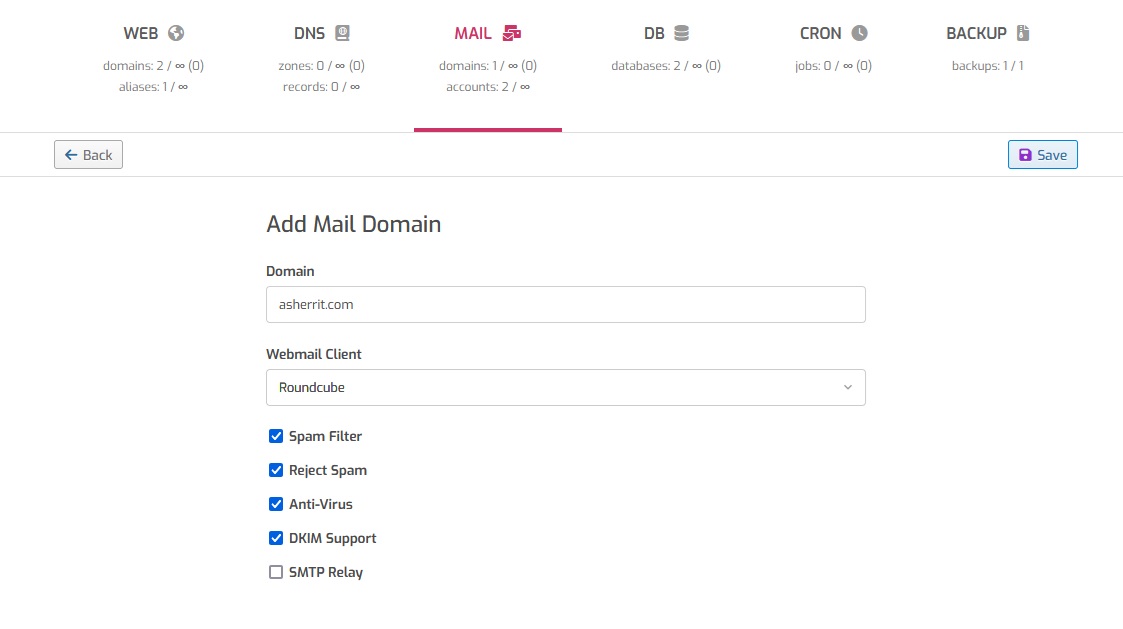
Add Mail Domain: Click on "Add Mail Domain" and enter your domain (e.g.,
domain.com). -
Enable All Settings: Enable all available settings for the mail domain.
-
SMTP Relay: We highly recommend using SMTP relay. Follow this guide to set up a free SMTP relay with one of our recommended providers.
- If you will not use SMTP Relay, follow these steps:
-
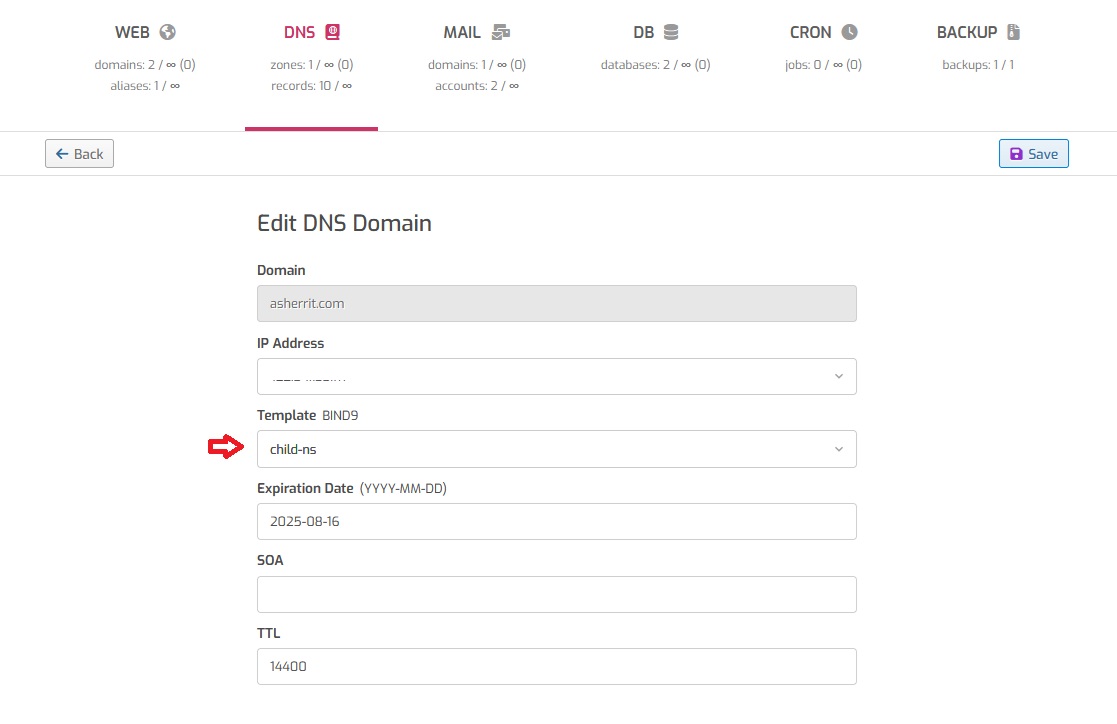
Go to DNS tab and create your DNS zone.
-
Select "child-ns" for the Template.
-
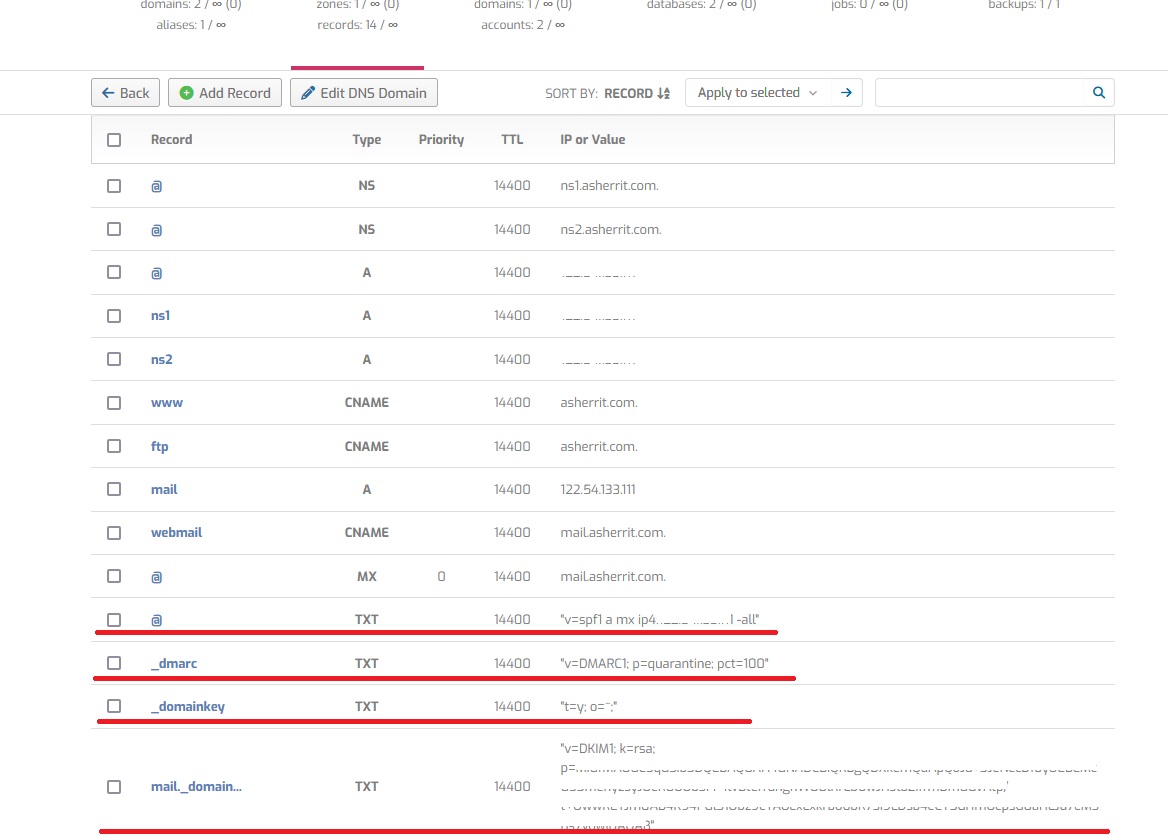
Open the created DNS zone.
-
And create these records to your domain registrar.
-
- If you will not use SMTP Relay, follow these steps:
-
Save: Click "Save" to add the mail domain.
Step 3: Configure Mail Domain Settings
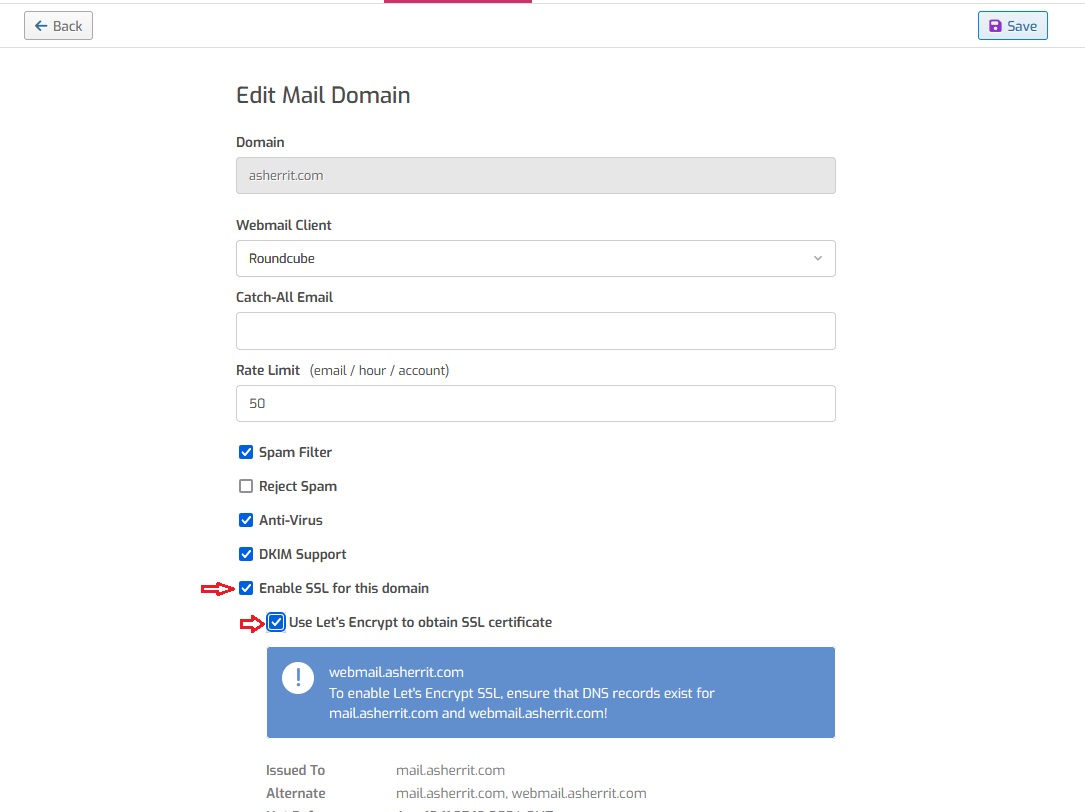
- Edit Mail Domain: Hover over your mail domain, and a pencil icon will appear. Click on it to edit the domain settings.
- Set Rate Limit: Configure the rate limit for the email domain as needed.
- Enable SSL: Check the box that says "Enable SSL for this domain."
- Let's Encrypt Certificate: Check "Use Let's Encrypt to obtain SSL certificate" and click "Save."
- Note: If using Cloudflare, the "webmail" A record should not be proxied initially. Enable proxying after the SSL certificate is obtained.
Step 4: Create Email Accounts
- Add Mail Account: Return to the "Mail" tab. Hover over the mail domain and click on the plus icon to add a new mail account.
- Customize Account:
- Name: Set the email account name.
- Alias: Add any aliases for the email account.
- Quota: Set the storage quota for the account.
- Rate Limit: Configure the rate limit for the email account.
- Forwarded Email: Optionally, add a forwarded email address to forward all received emails to another account.
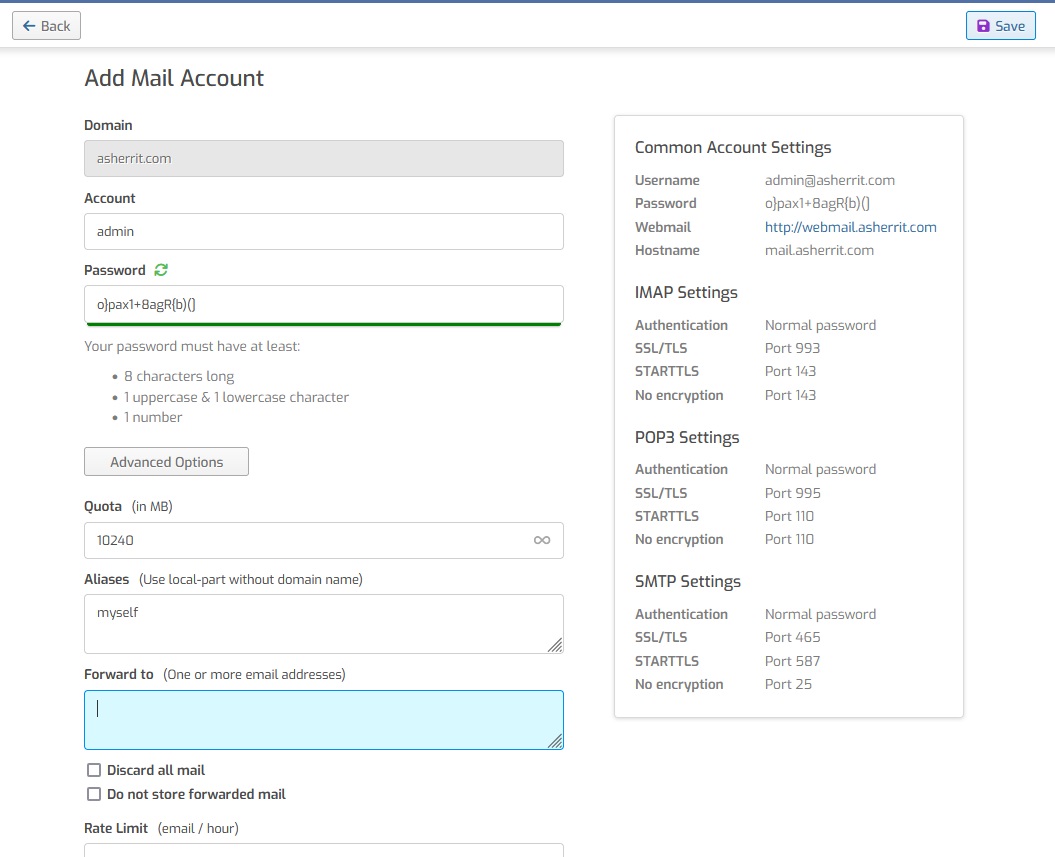
- Save: Click "Save" to create the email account.
Step 5: Test the Email Account
- Open Webmail: Go back to the "Mail" tab and hover over the mail domain. Click on the paper plane icon to open webmail.
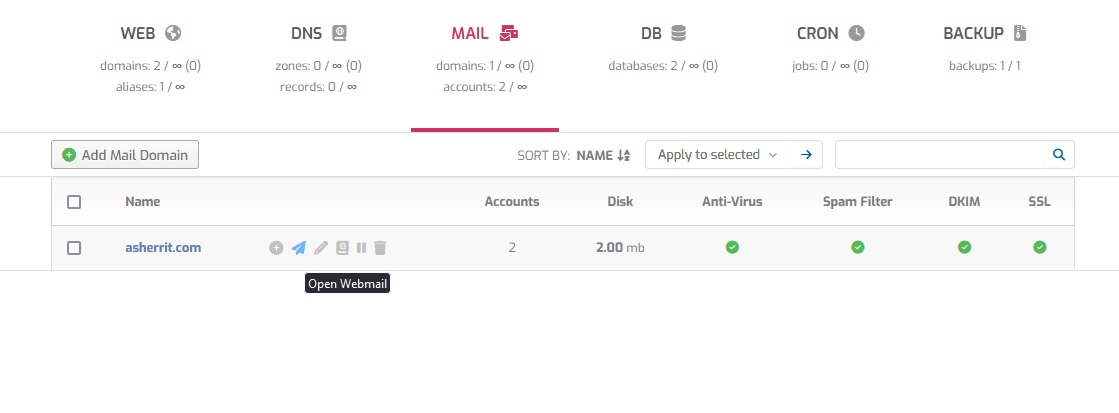
- Login: Enter your email account credentials to log in.
By following these steps, you will have your email domain set up and email accounts created. This guide ensures your email services are configured securely and efficiently.