Creating Your First Website
2887 ViewsCreating Your First Website
Creating your first website with Asherr's hosting services is a straightforward process. Follow the steps below to get your site up and running.
Step 1: Login to the Control Panel
- Login to the Panel: Use the credentials provided in your confirmation email to log in to your web hosting control panel.
Step 2: Add Your Domain
- Navigate to the Web Tab: Once logged in, click on the "Web" tab.
- Add Web Domain: Click on "Add Web Domain" and enter your domain name (e.g., yourdomain.com).
- Save: Click "Save" to add the domain to your hosting account.
Step 3: Edit Your Website Settings
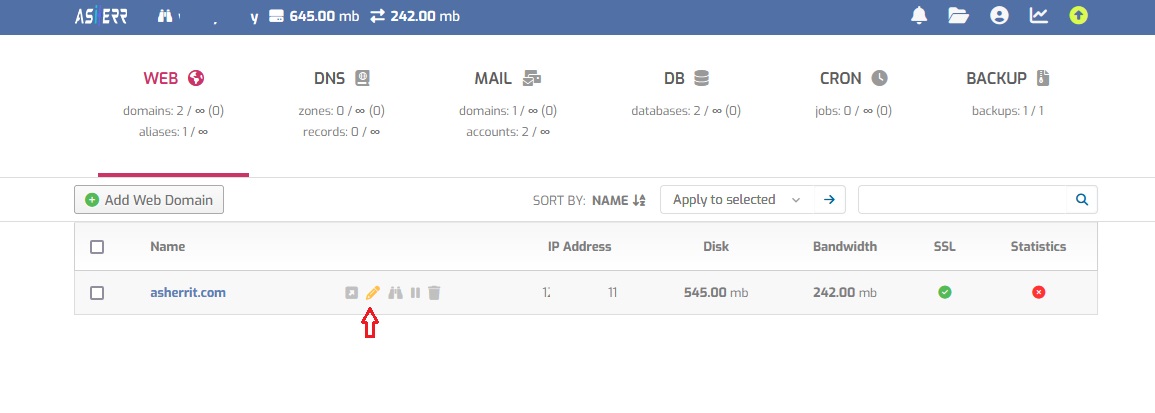
- Edit Website: Hover over your newly added domain, and a pencil icon will appear. Click on it to edit the website settings.
- Add Alias (Optional): You can add any aliases for your website in the provided field.
Step 4: Enable SSL for Your Domain
- Enable SSL: Check the box that says "Enable SSL for this domain."
Let's Encrypt Certificate (Optional): You can opt for a free SSL certificate by checking "Use Let's Encrypt to obtain SSL certificate" and then click "Save."However, we recommend using Cloudflare's SSL certificate for enhanced security and a longer validity period.
Step 5: Cloudflare SSL Certificate (Recommended)
Asherr recommends using Cloudflare's SSL certificate, which can last up to 15 years.
- Follow the this Guide: If your domain isn't managed by Cloudflare yet, follow this guide to set it up.
- Navigate to Cloudflare Dashboard: Go to the "SSL/TLS" tab in your Cloudflare dashboard.
- Create Certificate: Under "Origin Server," click on "Create Certificate."
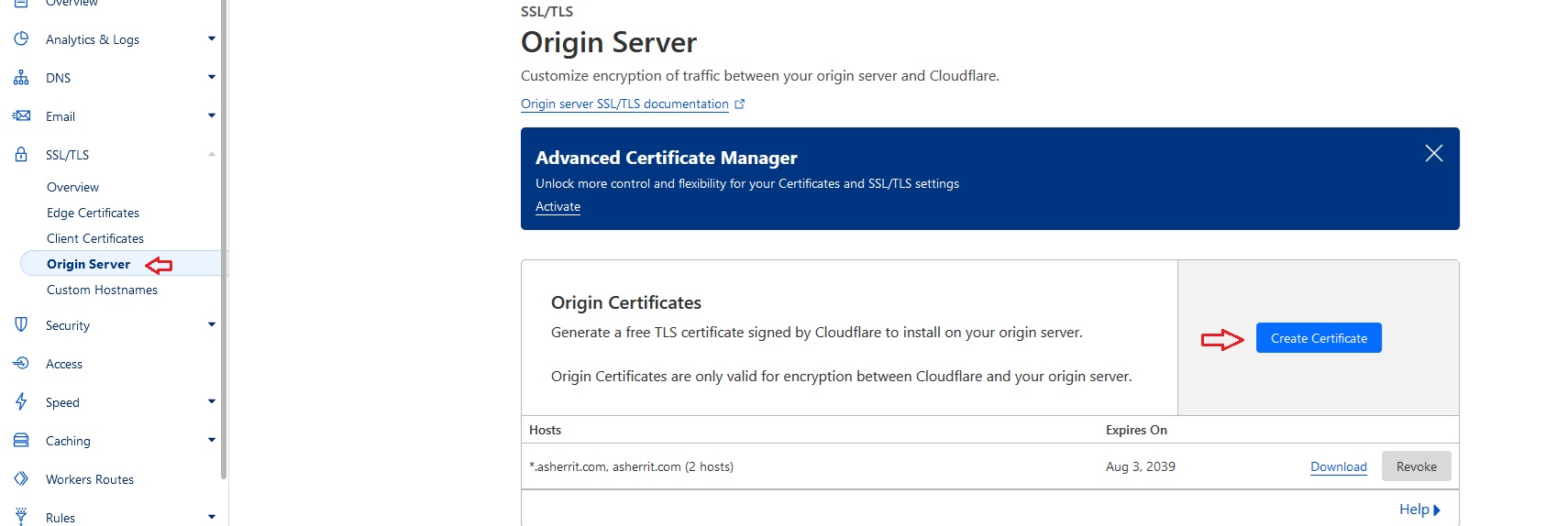
- Save Certificates: Save the certificate key and the private key provided by Cloudflare. You can use these keys for future websites.
Step 6: Apply Cloudflare SSL Certificate in Control Panel
- Return to Control Panel: Go back to your web hosting control panel.
- Paste Certificates: Paste the certificate key and the private key in the respective fields.
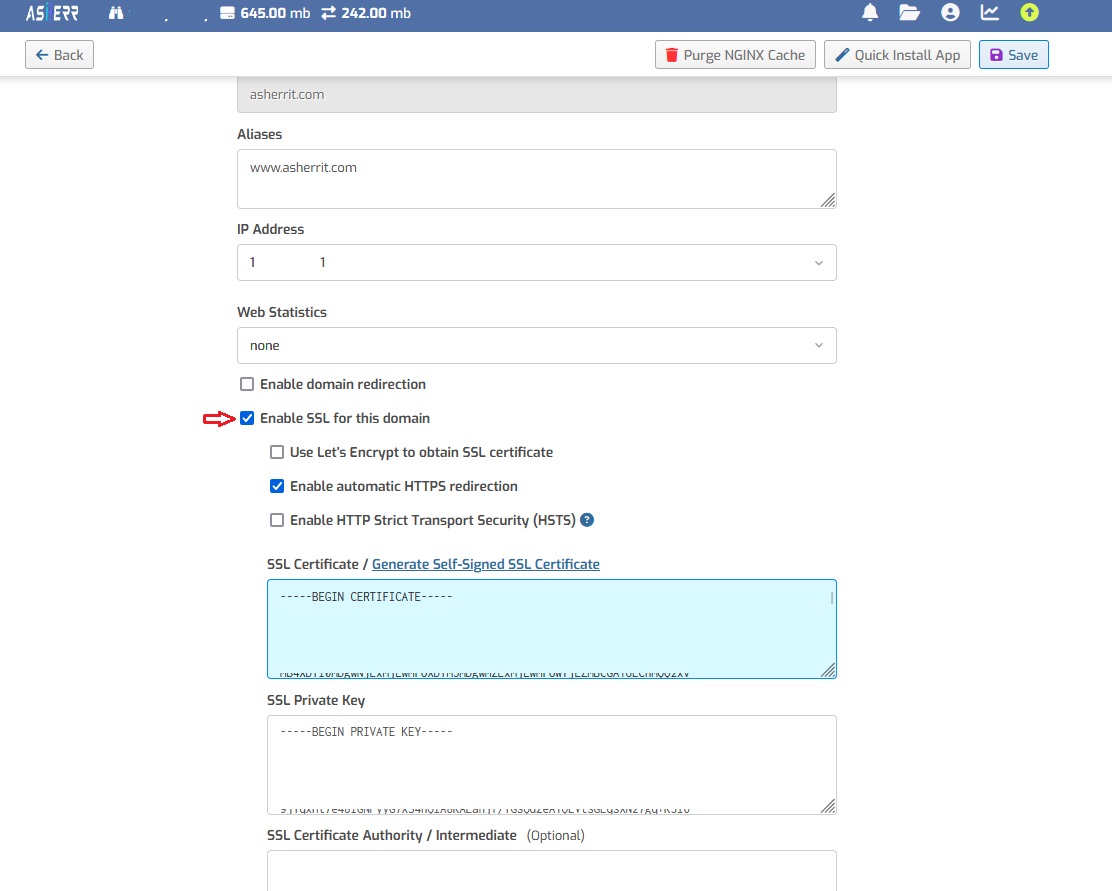
- Handle Certificate Authority Error: If you encounter an "Invalid Certificate Authority" error, you need to get the Cloudflare CA chain. Get the Cloudflare CA chain here.
- Save: Click "Save" to apply the SSL certificate.
Step 7: Test Your Website
- Verify: Visit your website to ensure it is up and running with the SSL certificate properly installed.
By following these steps, you will have your first website set up and secured with an SSL certificate. Make sure to explore further settings and features to fully customize your site according to your needs.