Using Cloudflare to Protect and Enhance Your Website
3113 ViewsUsing Cloudflare to Protect and Enhance Your Website
Introduction
Cloudflare is a powerful tool that helps protect your website from malicious attacks and enhances its performance. This guide will walk you through the steps to set up Cloudflare for your website, including users who did not register their domain with Cloudflare, and how to use Cloudflare's free tools to improve security and performance.
Step 1: Sign Up for Cloudflare
- Go to Cloudflare's website and click on "Sign Up."
- Create a new account by entering your email address and password.
Step 2: Add Your Domain to Cloudflare
-
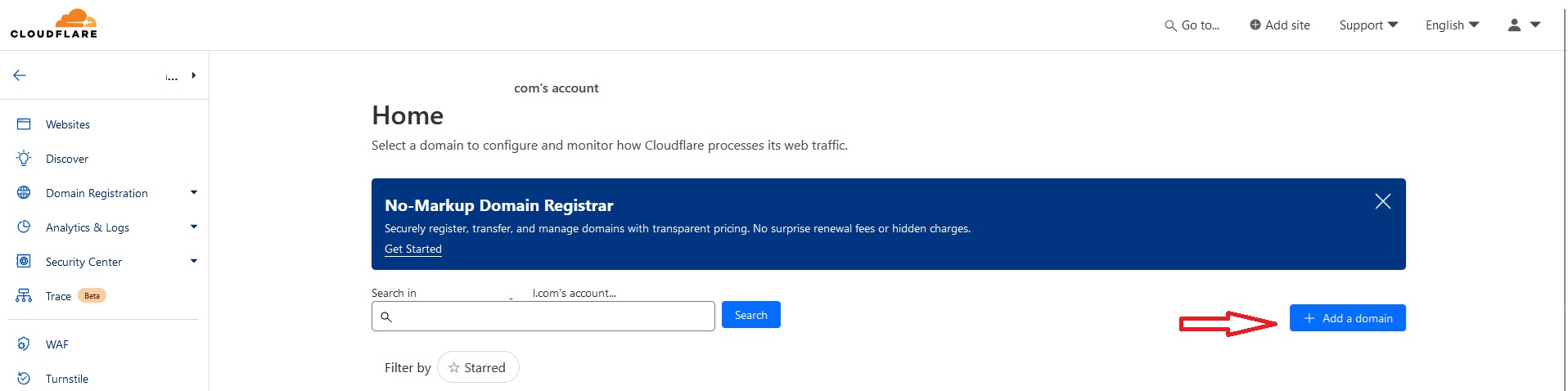
After logging in, click on "Add a Site" from your Cloudflare dashboard.
-
Enter your domain name (e.g., yourdomain.com) and click "Add Site."
-
Select the free plan and click "Continue."
Step 3: Update DNS Records
- Cloudflare will automatically scan your existing DNS records. Review the scanned records for accuracy.
- If you registered your domain with Squarespace or another provider, you'll need to update your nameservers to Cloudflare's nameservers. Cloudflare will provide you with the new nameservers.
Step 4: Change Nameservers
- Log in to your domain registrar (e.g., Squarespace).
- Navigate to the DNS settings for your domain.
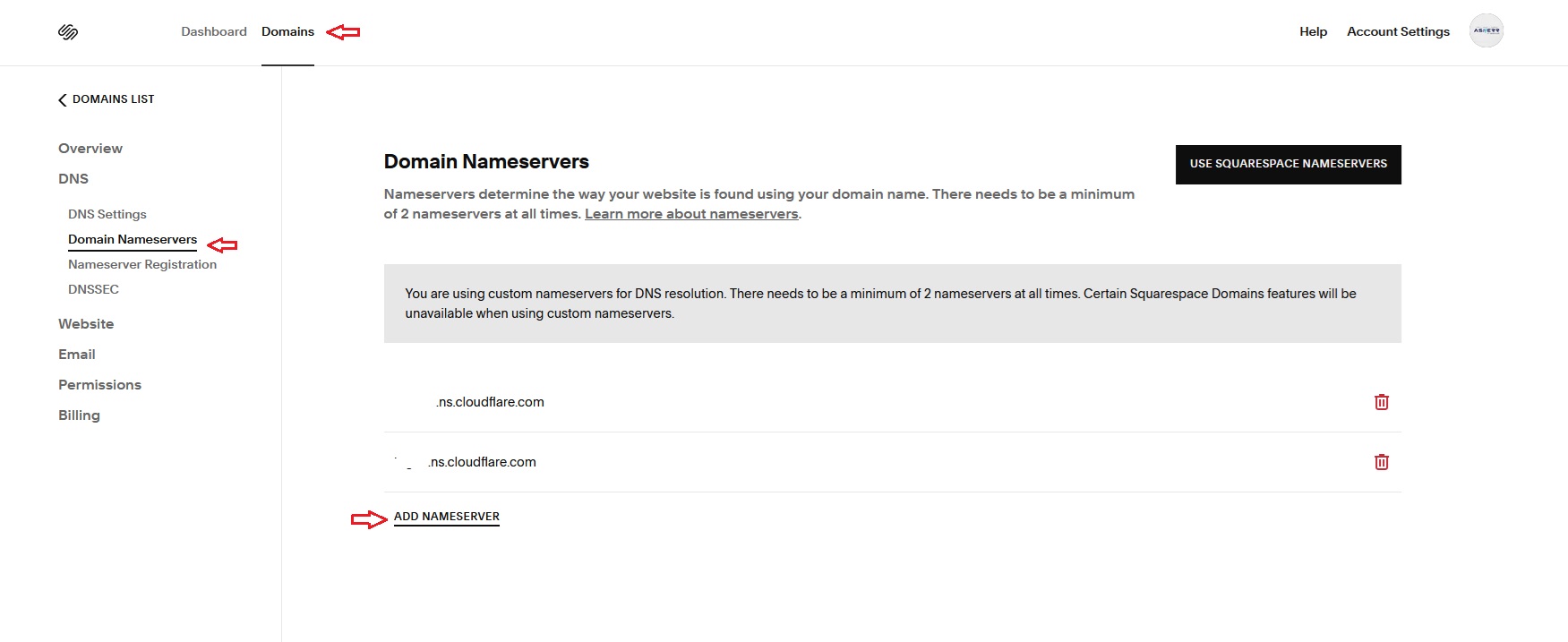
- Replace the existing nameservers with the Cloudflare nameservers provided in Step 3.
- Save the changes and wait for cloudflare to validate your domain.
Step 5: Enable Free Cloudflare Tools
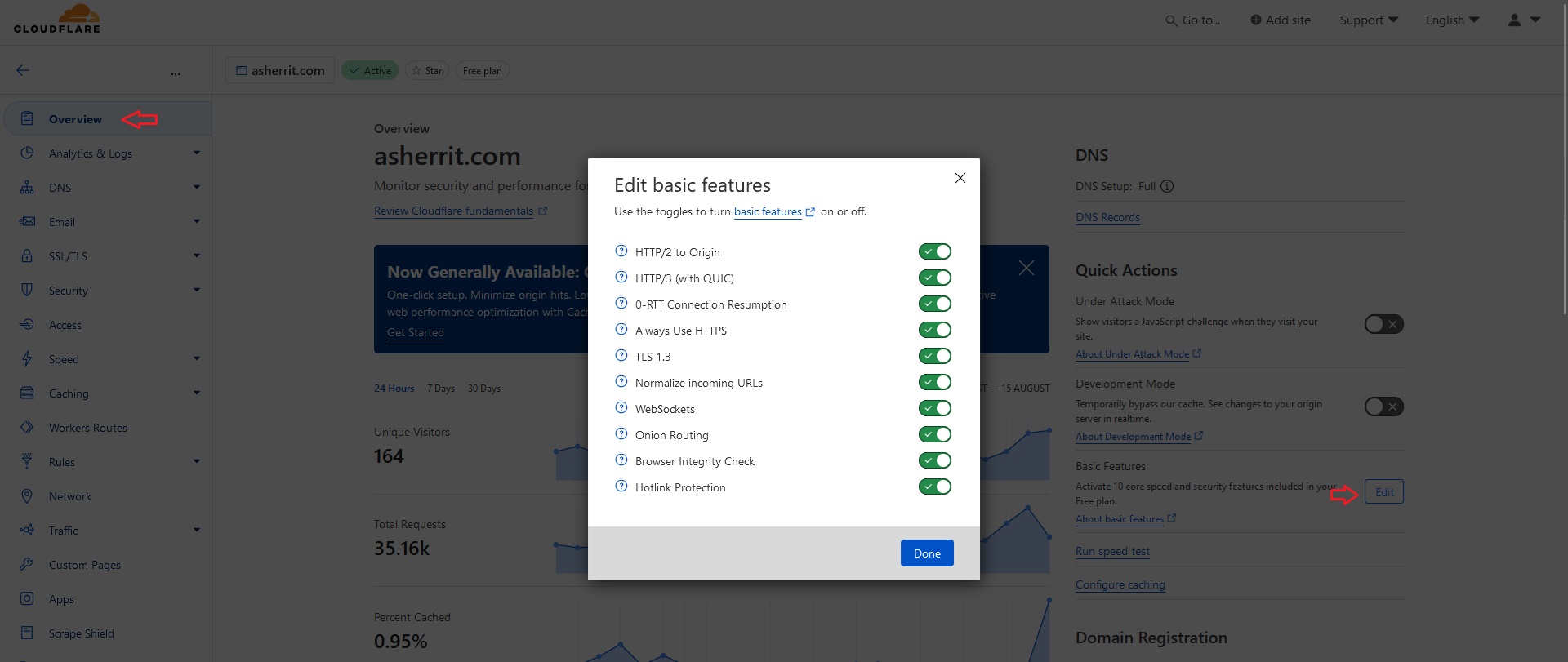
- Go to the "Overview" tab in your Cloudflare dashboard.
- On the right side, you will see an option to activate the following 10 basic features:
- HTTP/2 to Origin
- HTTP/3 (with QUIC)
- 0-RTT Connection Resumption
- Always Use HTTPS
- TLS 1.3
- Normalize incoming URLs
- WebSockets
- Onion Routing
- Browser Integrity Check
- Hotlink Protection
Step 6: Change Encryption Mode
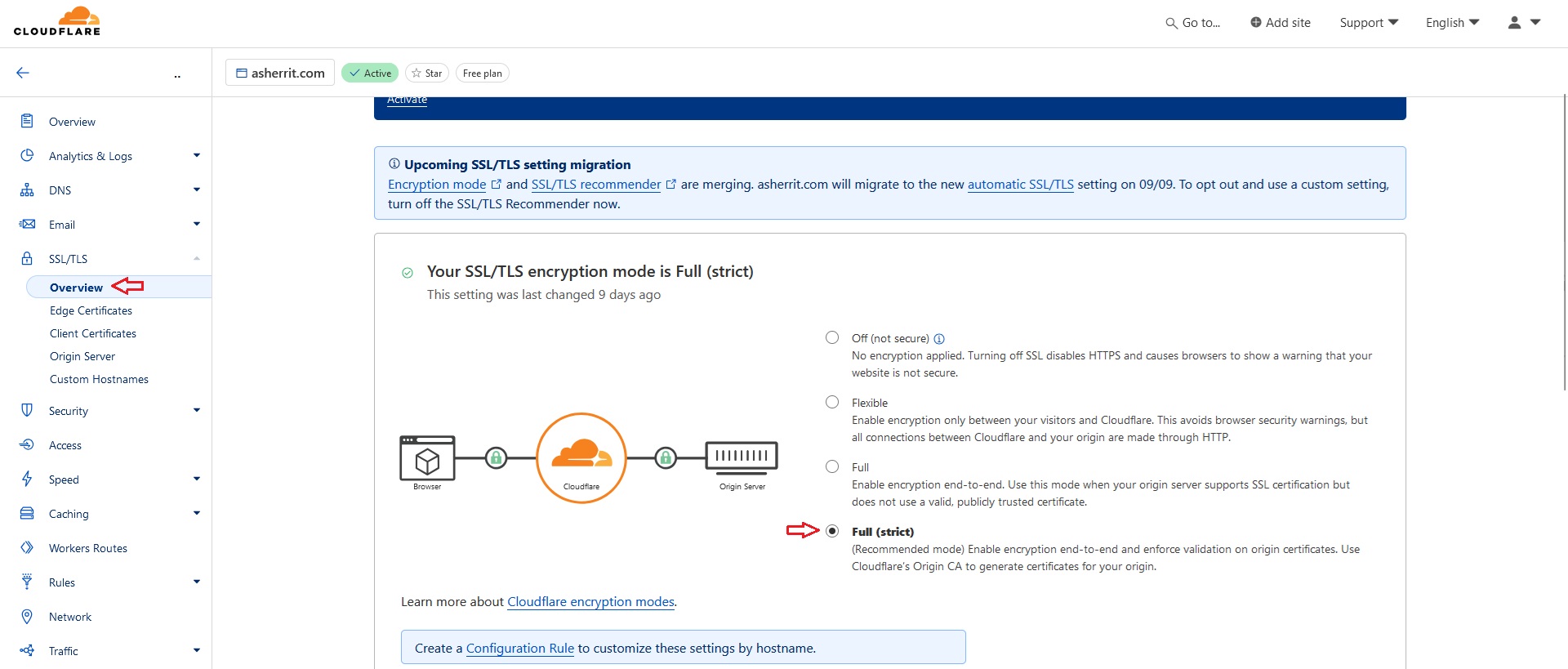
- Navigate to the "SSL/TLS" tab.
- Set the encryption mode to "Full (strict)."
Step 7: Creating and Managing DNS Records
-
Navigate to the "DNS" tab in your Cloudflare dashboard.
-
Click on "Add Record."
-
Select the type of record (e.g., A, CNAME).
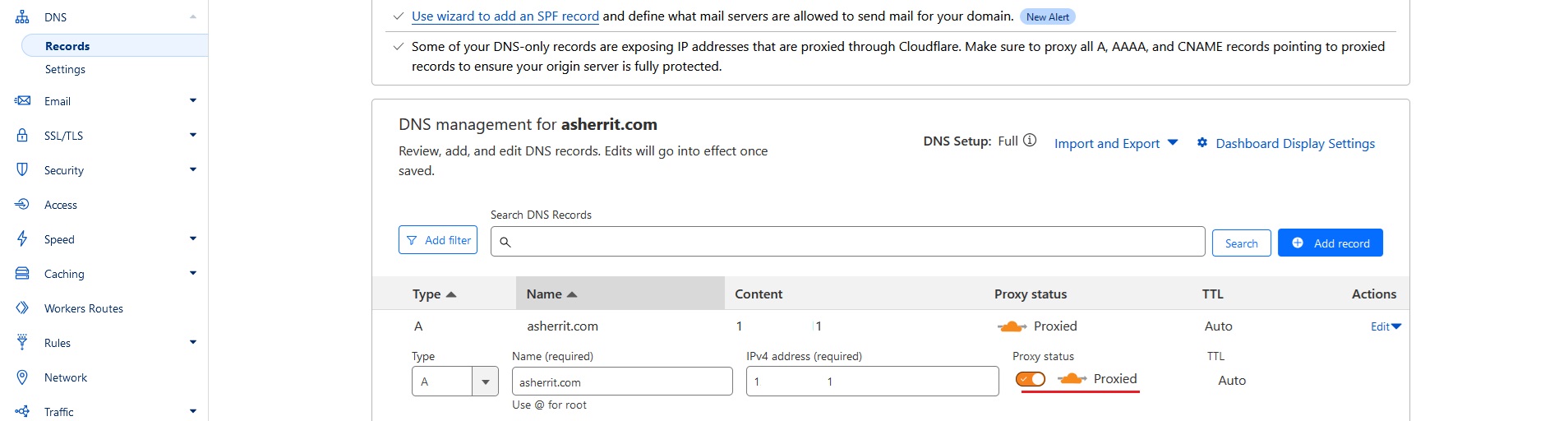
- A Record: Points to an IP address. For example, to point your domain to your hosting panel, create an A record with the name "@" and your hosting panel's IP address.
- CNAME Record: Points to another domain name. For example, create a CNAME record with the name "www" and your root domain (e.g., yourdomain.com) to point www.yourdomain.com to yourdomain.com.
-
Ensure the proxy status (orange cloud) is enabled to route traffic through Cloudflare for added protection and performance.
-
Save the record.
Step 8: Verifying Changes
- It may take a few minutes to a few hours for DNS changes to propagate.
- Once propagation is complete, you can verify that your domain is properly configured by checking the "Overview" tab in your Cloudflare dashboard.
- Visit your website to ensure it's functioning correctly and that Cloudflare's features are active.