Registering and Setting Up SMTP Relay for Free Using Brevo
6664 ViewsRegistering and Setting Up SMTP Relay for Free Using Brevo
Using an SMTP relay service like Brevo can significantly enhance your email delivery rates. Follow these steps to register and set up a free SMTP relay using Brevo.
Step 1: Register on Brevo
- Visit Brevo Website:
- Go to Brevo's website.
- Sign Up:
- Click on the "Sign Up Free" button and create an account using the free plan, which includes 300 free emails per day.
Step 2: Access SMTP Relay Settings
- Log In:
- Log in to your Brevo account.
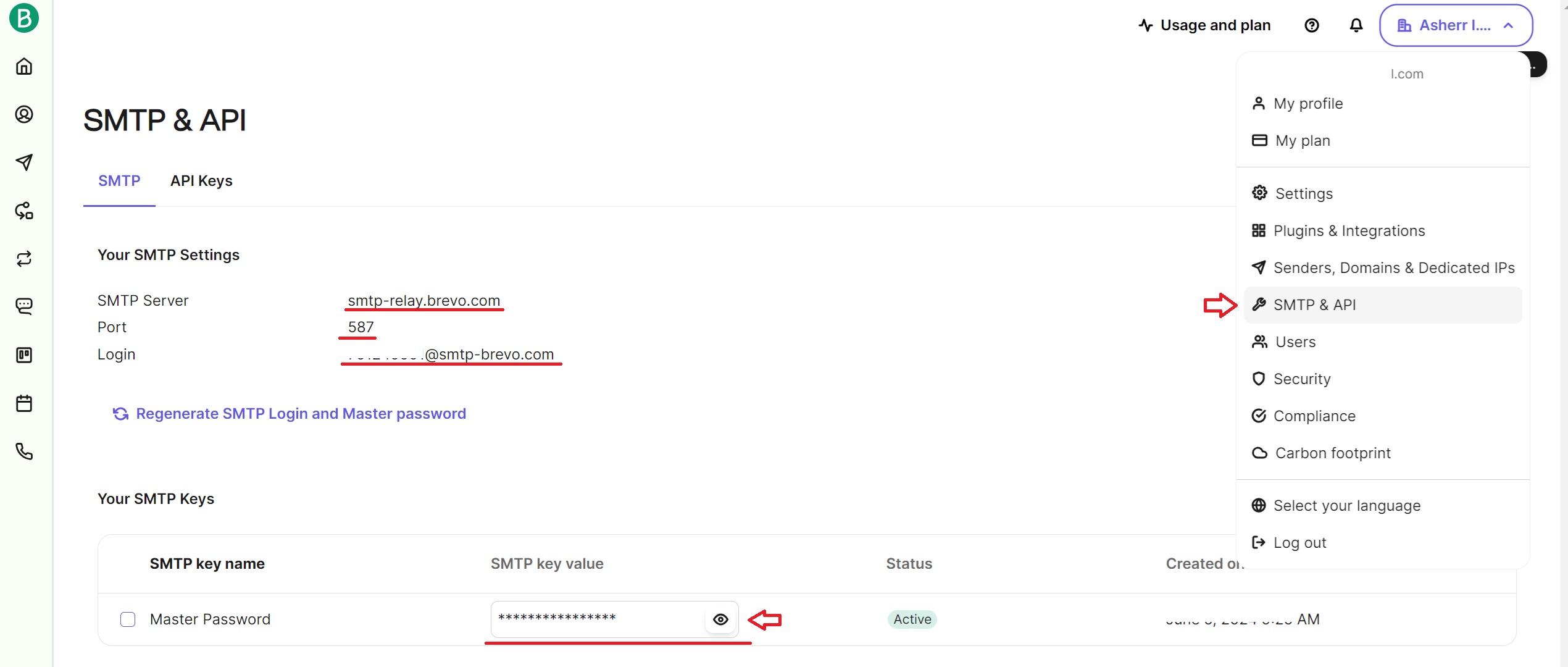
- Access SMTP & API:
- Click on your profile icon located at the top right corner of the screen.
- Select "SMTP & API" from the dropdown menu.
Step 3: Obtain SMTP Relay Settings
- Locate SMTP Settings:
- In the SMTP & API section, you will find the SMTP relay settings, including the server address, port, and your SMTP credentials.
Step 4: Configure SMTP Relay in Hosting Panel
- Log In to Hosting Control Panel:
- Access your web hosting control panel.
- Navigate to Mail Tab:
- Go to the "Mail" tab.
- Edit Mail Domain:
- Hover over the chosen mail domain and click on the pencil icon to edit it.
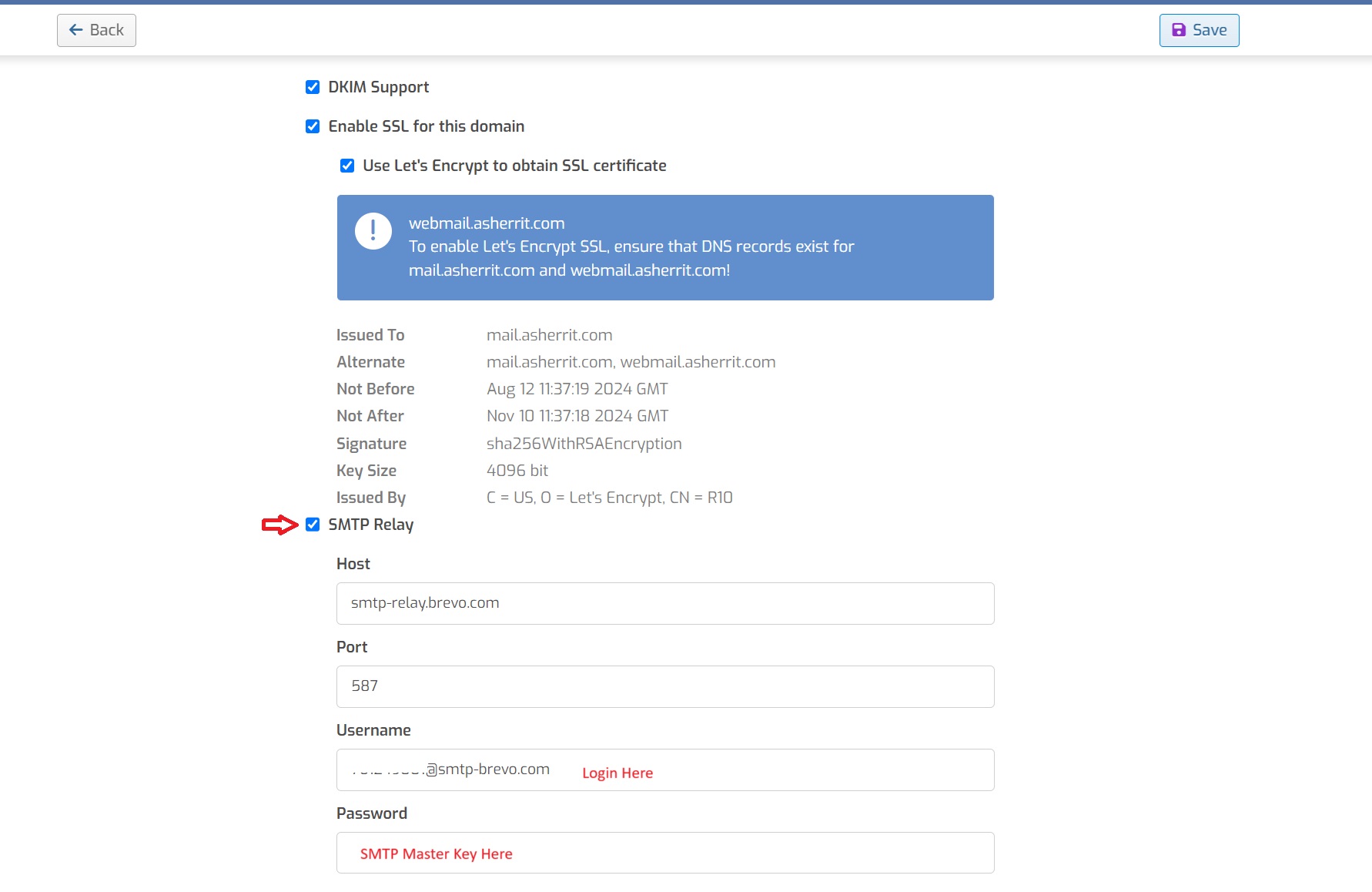
- Enable SMTP Relay:
- Scroll to the bottom of the mail domain settings and check the box for "SMTP relay."
- Enter Brevo SMTP Settings:
- Paste the SMTP settings from Brevo into the corresponding fields in the web hosting panel:
- Username: Use the SMTP username provided by Brevo.
- Password: Use the SMTP master key provided by Brevo.
- Paste the SMTP settings from Brevo into the corresponding fields in the web hosting panel:
- Save Settings:
- Click "Save" to apply the settings.
Step 5: Test the SMTP Relay
- Send a Test Email:
- Try sending an email from your configured mail domain to ensure everything is set up correctly.
- Verify Delivery:
- Check the recipient's inbox to confirm that the email was delivered successfully.
By following these steps, you can easily set up a free SMTP relay using Brevo, enhancing your email deliverability and ensuring your emails reach their intended recipients.